ATR CustomTools Batch Operation
When accessing ATR CustomTools Batch Operations:
- A SOLIDWORKS Drawing as an active document: Only that drawing will be added to the Documents to Process list.
- A SOLIDWORKS Model as an active document: Its full structure and all related drawings are added to the Documents to Process list.
- A component selected from the SOLIDWORKS Design Tree: That component's full structure and all related drawings are added to the Documents to Process list.
You can add additional files to the process list with or without loading their structure. Some operations and settings may only work with structures.
The Batch Operation dialog box disappears when you start the batch operation. If the batch process completes successfully, the dialog does not appear again. If there are warnings or errors, the dialog appears again so you can review them.
| Export | Export the structure information of the selected document into another information system. (Not available in ATR CustomTools Viewer) | ||||||||||||
| Where Used | Shows where the selected document is used. | ||||||||||||
| File Operations |
Operations for adding files to the batch operation and for maintaining documents already included in it:
|
||||||||||||
| Print Order |
Options to set up the printing order.
|
||||||||||||
| List |
Commands to export and open the document list:
|
||||||||||||
| Preview |
Opens a preview of the selected document. You can switch the document shown in the Preview window by clicking the desired document in the Selected Documents To Process list.
TIP:
You can also select the desired sheet of the drawing to be shown in the Preview.
|
||||||||||||
| Close Preview | Closes the Preview window. |
Video Links
- Manage Order – Manage the printing order of the document. E.g. Printing follows the Bill Of Material order
- Batch Operation Templates
- Batch Operation Profiles
- Drawing Automation / Tasks
- Overwrite Property Values
- Video Links
You can freely select documents to process for each profile separately. The profile, rule, or task for which you are doing the document selection is shown in the title of the Documents to Process list.
Focus selection on a printing profile, conversion rule, or a task, and the Documents to Process list updates according to the operation. When the operation is selected, you can select documents to process for that operation from the list. Selecting an operation either pre-selects all supported documents, or executes the attached File Selection Filter, if any.
Common Buttons
The following buttons may be used with any combination of settings defined in the current batch operation. Visibility of these buttons may vary by the permissions of your ATR CustomTools database user.
| Save as Template | Save your batch operation settings as a new Batch Operation Template. Frequently used batch operations saved as templates allow you to set them up faster next time. |
Batch Operation Templates
Batch Operation Templates allow you to have pre-defined batch operations. Pre-defining batch operations lets you set up and save your most frequently used operations as templates for faster setup in the Print/Convert feature.
In the Batch Operation Templates tab, you can select a pre-defined template. Selecting a template makes the document selections automatically, based on the batch operation profiles and their selection filters defined in the template.
Click Save as Template to save your currently defined batch operation as a template.
Batch Operation Profiles
Select the batch operations you want to execute from any of the following tabs:
- Print Profiles
- Batch Conversions
- Drawing Automation / Tasks
A number after the tab name indicates the amount of selected operations from that tab, if any.
| Print Profile | Use custom defined printing profiles to collect SOLIDWORKS drawings made with specific sheet sizes to specific printers. You can also have multiple profiles that collect only specific drawings based on their attached File Selection Filters. If you do not see this node, you may not have any print profiles defined in the ATR CustomTools Print Properties options. |
| Batch Conversion |
Batch convert your SOLIDWORKS documents into other formats. Select the desired conversion rules from the
Batch Conversion list to convert selected files. Batch Conversion rules can be maintained in the
ATR CustomTools
File Conversion options.
Supported documents for processing depend on the settings of the selected Batch File Conversion rule.
TIP:
If you have Write permission to the active ATR CustomTools Profile, you can access
advanced settings of the Batch Conversion rule via its right-click context menu.
|
| Drawing Automation / Tasks |
Use various tasks to update your SOLIDWORKS models and drawings, or create drawings in a batch.
Rebuild task supports all documents, Drawing Creation Rules support non-virtual models
without drawings, and Sheet Metal Drawing tasks support only drawings of single body sheet metal
parts.
Sheet Format Actions support all drawings. |
Documents supported by the selected batch operation profile are selected automatically in the Documents to Process list when you select the desired profile. If the profile has an attached File Selection Filter, automatic selections are based on it.
You can change the Quantity of each component in the structure from the Documents to Process list. The quantity change is applied either globally for all selected profiles, or can be overridden per profile. The quantity can be updated to processed drawings' Custom Properties and thus be visible in drawing annotations at the time of conversion.
 icon in the Batch Printing,
File Conversion Rules, and Drawing Automation / Tasks lists indicates that a
File Selection Filter is associated with the rule. Automatic selection of documents will be made
according to the Filter.
icon in the Batch Printing,
File Conversion Rules, and Drawing Automation / Tasks lists indicates that a
File Selection Filter is associated with the rule. Automatic selection of documents will be made
according to the Filter.
Drawing Automation / Tasks
Execute exclusive Rebuild tasks (or any scripted derivatives), have any amount of Drawing Creation Rules, generate special sheets for SOLIDWORKS Sheet Metal Drawings, update or change Sheet Formats using Sheet Format Actions, and dynamically enable/disable different drawing layers for selected profiles using Layer Definitions.
Exclusive Tasks: Rebuild Files
Select the Rebuild Files task to rebuild processed documents during the batch operation. Operations performed by the Rebuild Files task are similar to the SOLIDWORKS Rebuild command (Edit, Rebuild). The Rebuild Files task applies the rebuild operation in reverse BOM order (from bottom to top) to avoid out-of-date files. ATR CustomTools automatically sets the Print Order as descending BOM order while processing the Rebuild Files task.
Create Missing Drawings
The Drawing Creation Rules automate SOLIDWORKS drawing creation for non-virtual models without drawings. Rules are defined in ATR CustomTools Drawing Creation options. Each rule may define specific drawing template, sheet format, sheet naming rule, and what dimensions are imported to views. Rules can also automatically insert a BOM table.
A Drawing Creation Rule can stamp drawings with a specific Drawing Property during creation, making it easy to locate all automatically created drawings with Search for finalizing.
It is recommended to use File Selection Filters with Drawing Creation Rules to target specific groups of models. For example, you can have a Drawing Creation Rule that only applies to sheet metal parts that are not toolbox or Design Library components and have specific Custom Properties.
Sheet Metal Drawing: Create Cutting Profile Sheet
Select the Create Cutting Profile Sheet task to create cutting profile sheets for sheet metal parts' drawings. Sheets are generated based on the Cutting Profile feature options set in the ATR CustomTools Cutting Profile Options. Does not support multibody parts.
Sheet Metal Drawing: Create Bend Sheet
Select the Create Bend Sheet task to create bend sheets for sheet metal parts' drawings. Sheets are generated based on the Bend Sheet feature options set in the ATR CustomTools Bend Sheet Options. Does not support multibody parts.
Sheet Format Actions
Only visible if the current profile has any Sheet Format Actions. Sheet Format Action can be applied to all drawings in the list when selecting Save Drawings and without performing other operations or document selections. If any printing or conversion rules are selected with the Sheet Format Action, it will only apply to drawings processed by those rules.
Layer Definitions
Only visible if the current profile has any Layer Definitions. Select which Layer Definitions to apply for all drawings processed by any rule. This operation alone will never save changes to original drawings. You can set up layer definitions in ATR CustomTools Layer Definitions options.
- Files added after task selections will not get automatically selected by the tasks.
- If you have unsaved changes in open documents included in the batch operation with any task selected, you will be prompted to choose whether or not to save the changes. Changes saved during the batch operation may not be undoable.
Overwrite Property Values
This tab contains all actions that dynamically change Custom Property values for the selected operations. Changed values may be used in annotations and be seen in converted documents, or used in conversion rule target paths, but property value changes are not saved to the original model; Save drawings with updated quantities is an exception.
To update and save the quantity from the Documents to Process list to the drawings, you must have Attribute used as quantity defined in ATR CustomTools Profile options, on the Batch Job page. Otherwise, options to update and save quantity are not visible.
To Translate dictionary properties, you must have at least one OpenDictionary Property in your profile. Otherwise, this option is not visible.
By default, when overwriting property values, ATR CustomTools attempts to re-resolve combinations that might be affected and update the corresponding drawing annotation and BOM table cells. Use Do Not Resolve Combinations in Drawing Annotations to disable this feature. This may be useful for models not created with ATR CustomTools and may not have consistent property data.
Properties with the Enable changing of value in printing option selected in the property's additional options are shown in the pane and their values can be changed in batch operation. Any property values in SOLIDWORKS document properties are not overwritten in batch operations, only the value written to the drawings can be customized here. Additional options are set in the Additional Options page of the Property Wizard.
Entity Selection can overwrite property values using the selected entity as a key for retrieving file-specific Custom Entity Properties. If the current profile has no Entity Settings, this option will not be available.
If none of the mentioned features are defined in the ATR CustomTools Profile, the Overwrite Property Values tab is not shown.
- The Enable changing of value in printing option in the property's Additional Options overrides the Hidden option so you can also overwrite values of hidden properties in the batch operation.
- To overwrite the value of a combination property, you need to inactivate the combination link by clicking the Property linking button associated with the property you want to overwrite in the Overwrite Property Values view.
- Overwriting values stored in documents' revision data is not supported in batch operations.
- Changes to values of properties included in the target path or filename of the selected File Conversion rule are also applied to the output files' paths and/or filenames.
Video Links
- Overwrite Property Values – Setup values for properties to be written to drawings on batch operation.
- Add Quantity – Insert manufacturing quantities into printed/converted documents.
- Reload Sheet Format – Reload the sheet format used in your drawings.
- Change Sheet Format – Change the sheet format used in the drawings.
The Select Documents to Process list shows the structure of the document to be processed by the batch operation. By default, the list is filled based on the bill of materials order of the document for which you execute the Print/Convert command.
For example: When you execute the Print/Convert command against an assembly that is open, the assembly structure is automatically loaded into the list based on the assembly's bill of materials order.
Recently created documents that are not yet saved do not appear in the Select Documents to Process list.
Unsaved changes in documents are not included in output files.
Please ensure all files to be processed are saved and rebuilt before performing the Print/Convert command.
You can also execute the Print/Convert command without having documents open in SOLIDWORKS. In that case, you can add documents to the batch operation using the following methods:
- Click File Operations, Add Files to add files using a file browser.
- Click File Operations, Add Folder to add all supported files from a folder using a folder browser.
- Click File Operations, Add Assembly to add an assembly using a file browser.
- Drag and drop files from Windows Explorer into the Select Documents to Process list.
When inserting documents using Add Files, Add Folder, or drag and drop, the files' bill of materials order is not read. These files appear in the list in the order they were inserted.
Properties with Display in Print and Convert enabled are retrieved for each document, under a field named by the Attribute of the property. Models and drawings might share attributes, so values are retrieved for both. Only properties with the option enabled can be used with File Selection Filters. Values retrieved but not available for filtering are shown in light gray.
| Name | Name of the document. SOLIDWORKS drawings with their sheets are shown as tree structures under the Name column. When you open a drawing in ATR CustomTools Batch Operation, the last active sheet is always included in the list. |
| Configuration |
Name of the referenced SOLIDWORKS model configuration, or the configuration referenced in the drawing.
If your assembly uses several configurations of the same part, all instances and referenced configurations are listed in the batch operation's list. |
| Copies | Shows the currently set number of copies to be printed. You can change the value by clicking the current value and typing or selecting the desired number. |
| Qty | Shows the quantity of the component. Edited quantities are shown in blue. The quantity shows how many times the part is needed for the assembly it refers to. Changing the quantity of an assembly multiplies its children documents' quantity automatically. |
Drawing sheets handled by the selected batch operation profile are automatically selected when you select the profile.
Changing between selected batch operation profiles also updates the Select Documents to Process list to show the selected documents for the profile.
Component quantities are calculated based on the selected batch Print Profile or Batch Conversion rule. Quantities shown may change when you change the batch operation rule selection.
When you change the component quantity manually, you are prompted to choose whether to apply the changed quantity to all selected batch printing profiles and file conversion rules. Once accepted, the Add quantity option in Additional Options is also selected automatically to print the quantity values to the output documents.
In a ATR CustomTools batch operation, derived configurations are considered as references of their parent configuration. The following examples describe how ATR CustomTools considers drawings created from different level configurations of the referenced model.
The following image presents the part structure referenced in the examples.
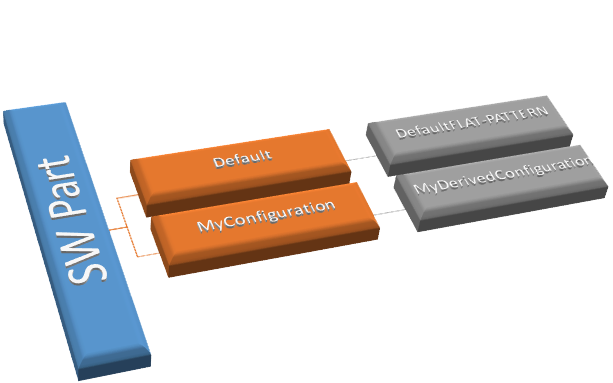
Figure 1. The structure of the example part used in the following examples.
Example 1:
The assembly called Assembly refers to the Default configuration of Part1. However, the only drawing created from Part1 references the part’s DefaultFLAT-PATTERN configuration.
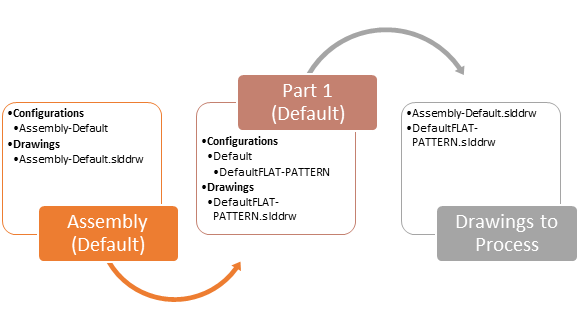
Figure 2. Opened structure and a summary of the drawings processed from the associated structure.
In the case shown in Figure 2, the drawing referencing the DefaultFLAT-PATTERN configuration is considered as a drawing of the Default configuration and is included in the batch operation.
Example 2:
The assembly refers to the Default configuration of Part1, but the only drawing created from Part1 references another configuration called MyConfiguration.
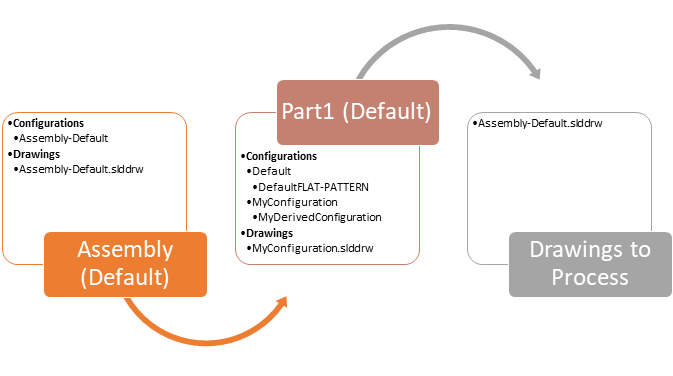
Figure 3. Opened structure and a summary of the drawings processed from the associated structure.
In the case shown in Figure 3, none of the drawings referencing Part1 are processed because none of the drawings reference the configuration used in the assembly structure.
Example 3:
The assembly refers to the MyDerivedConfiguration configuration of Part1, but the only drawing created from Part1 references another configuration called MyConfiguration.
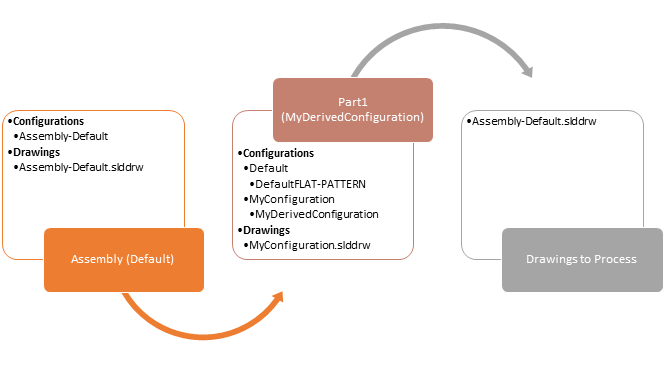
Figure 4. Opened structure and a summary of the drawings processed from the associated structure.
In the case shown in Figure 4, a drawing exists but references the parent configuration (MyConfiguration) of the one referenced in the assembly structure. For that reason, the drawing is not processed in the batch operation.
When working in an environment with the SOLIDWORKS PDM system, the processed files' vault file version is checked. If the file processed is not the latest version, you are prompted to decide what to do:
| Do this for all | Select this option to apply the selected action to all files that are not the latest version and are being processed in this batch operation. |
| Get Latest | Gets the latest version of the file from the SOLIDWORKS PDM Vault. |
| Get As-Built | Gets a version of the file from the time the assembly was last checked in. |
| Use Local | Select this option to process your local version of the file in the batch operation. |
SOLIDWORKS virtual components may be physically located in the local temp folder. ATR CustomTools determines the source path of virtual components based on their physical parent documents. Therefore, the virtual components' output path for file conversion points to the same folder as their parent document.
The parent document of a virtual component does not need to be open while processing virtual components with the Print/Convert feature. During processing, parent documents are opened for the batch process and automatically closed afterwards.
- Virtual components appear in the documents to process list but cannot be selected. However, they are still processed in the batch operation as described above.
- Virtual components are not processed with file conversion rules executed on file save operations.
A document search feature is located under the Select Documents to Process list. It allows you to search for specific documents from the list of files added to a batch operation.
| Search string | Enter a keyword to search in the document list. The keyword is searched from document names and from values of properties with Display in Print/Convert enabled. This option is set in the Additional Options page of the Property Wizard. |
| Search | Click the Search button to execute the search using the specified search string. |
| < | Jump to the previous matching row in the document list. |
| > | Jump to the next matching row in the document list. |
Linked properties are ATR CustomTools Properties that have a link to a combination of multiple properties. Each linked property has a button for controlling the link state (Enabled/Disabled). The following table describes the available link states:
| Link Status | Meaning | |
 |
Active | Property link is active. Property value is automatically retrieved based on the source property set in the property settings. |
 |
Inactive | Property link is inactive. Property value can be typed by the user. |
Right-click the desired filename and select Remove to delete a file from the list of files to be processed in the batch operation.
Other commands in the right-click menu:
| Select all | Selects all documents from the list. |
| Clear selection | Clears the current selection. |
| Reset quantities | Resets all quantity values to defaults that the user has modified. |
Right-click the parent level document to open a context menu with the following additional options:
| Select all children | Selects all child level documents. |
| Clear children selection | Clears all selections from the child level documents. |