File Conversion Rule Editor
The File Conversion Rule Editor topic helps you with the Add/Edit Batch File Conversion Rule dialog box, which is used to Add new file conversion rules and Edit existing ones.
| Name | Determines the name of the file conversion profile. |
| File type | Determines the output file format the selected documents are converted into with the selected file conversion rule. See the Output File Types table for more information about supported output file types and their supported source document types. |
| Conversion Options | Additional conversion options. |
| Apply conversion rule to |
Sets the document type which the conversion rule applies to. Source document types not supported by the selected output file format cannot be selected.
|
 button to select a boolean from the
menu.
button to select a boolean from the
menu.
Defines the output filename and destination folder. If the destination does not exist, it will be created during the conversion process.
Click the button to add pre-defined
attributes to the output filename and its destination path. The following options are available:
- Browse for folder: Opens a folder browser to manually select the target path for output files.
- Model Properties: Retrieve a value of the desired model property into the filename.
- Drawing Properties: Retrieve a value of the desired drawing property into the filename.
- Weldment Properties: Retrieve a value of the desired cut-list property into the filename.
- Cut-List Item name: Retrieves the Cut-List item name to the filename.
- Body Number: Add body number of the cut-list item into the output filename. Use this option to convert multibody parts into DXF/DWG format so that all cut-list items of the individual bodies get converted to separate output files.
- Source Filename: Retrieves the filename from the source document and inserts it into the output filename.
- Source Path: Retrieves the source document path and includes it in the target filename.
- Top Assembly Filename: Inserts the name of the top-level assembly into the output file name.
- Top Assembly Path: Inserts the path of the top-level assembly into the Target filename.
- Part Number: Retrieves the part number and includes it in the target filename.
- Source Configuration: Inserts the name of the model configuration into the output file name.
- Sheet Number: Inserts the sheet number of the drawing into the filename.
- Sheet Name: Inserts the sheet name of the drawing into the filename.
-
Thickness: Add the sheet metal thickness to the output filename. The thickness value is determined based on the SOLIDWORKS Sheet Metal Parameters.
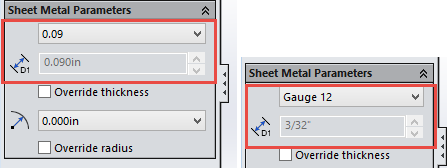
When thickness is used in output filename, it’s always presented as a decimal number. The unit is determined by source model document properties and the number of decimals. Trailing zeros are never displayed and the decimal separator is always a dot (.). The unit is not included.
-
Material: Add the source component material to the output filename. The SOLIDWORKS Cut-List-Item is the primary place to look for the material. The secondary place is the document itself.
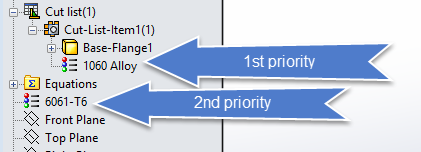
If the material is not specified for the Cut-List-Item or the document, the material is left empty in the output filename.
- Quantity: Add the total quantity of a component in the selected assembly into the output filename.
- Instance Number: Add the instance number of the component currently being converted into the output filename.
- Workgroup PDM File Revision: Inserts the Workgroup PDM file revision number into the output filename.
- Time: Inserts the current system time into the output filename.
- Date: Inserts the current system date into the output filename.
The backslash (\) after the source file path is added automatically when using source file path in the Target filename.
Illegal characters in the target path, including Property values, are automatically replaced by underscores (_) during the file conversion process.
- Weldment Properties
- Cut-List Item name
- Thickness
Let’s say we have a sheet metal box assembly like shown in the following picture that has four pieces of the same, configured sheet metal plate used as side walls of a sheet metal box. Two of the sheet metal plates are bent from both ends and two of the plates are not bent.
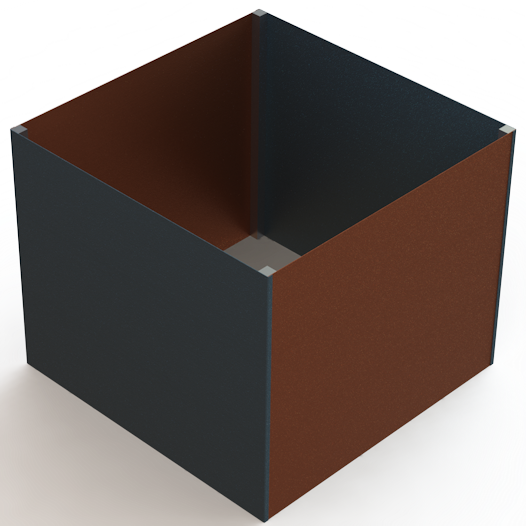
The Sheet Metal Box assembly referred in this example.
In this case, you may want to convert the DXF files from the sheet metal parts so that the output file names contain the part’s instance number and total quantity of the parts in the whole assembly, like:
<Path>\DXF\<PartNumber> <Configuration> <Instance no> of <Quantity>.dxf
To include the instance number and part’s total quantity in the output filename, include the following attributes in the Target filename of the file conversion rule used to convert the files into DXF:
- Instance Number
- Quantity
So, the Target filename format in this example is {DRW_PATH}\DXF\{DRW_FILENAME} {SRC_CONF} {Instance number} of {Quantity}.
Full path including the filename of an assembly referred in this example is D:\Workspace\SOLIDWORKS Design\Sheet Metal Boxes\000003 Default.sldasm. Using the output filename mentioned above in the File Conversion Rule, the output files' paths including the filename will be as follows:
- D:\Workspace\SOLIDWORKS Design\Sheet Metal Boxes\DXF\000001 Default 1 of 2.dxf
- D:\Workspace\SOLIDWORKS Design\Sheet Metal Boxes\DXF\000001 Default 2 of 2.dxf
- D:\Workspace\SOLIDWORKS Design\Sheet Metal Boxes\DXF\000001 Bended 1 of 2.dxf
- D:\Workspace\SOLIDWORKS Design\Sheet Metal Boxes\DXF\000001 Bended 2 of 2.dxf
Let's say you have a SOLIDWORKS part called 000001 Base Plate.sldprt located in D:\SOLIDWORKS Workspace\Steel Design\. Then, you have a file conversion rule for converting documents to PDF format and, which destination file is set as {DRW_PATH}{DRW_FILENAME} in the Target filename box.
Using the PDF file conversion rule defined as described above, the conversion output file with the path created from the 000001 Base Plate.sldprt is D:\SOLIDWORKS Workspace\Steel Design\000001 Base Plate.pdf.
You can use ATR CustomTools Properties of the available scopes in the file conversion output path and filename. If the property value included in the target filename is overwritten during the batch operation, the changes also apply to the output path and filename of the processed file.
File conversion rules can have a dynamic output path and filename. Properties belonging to different property scopes are color-coded in the Target filename box for easier recognition. The following colors are used:
| Color | Meaning | Example Blob |
|---|---|---|
| Model property |  |
|
| Cut-List property |  |
|
| Drawing property |  |
|
| Pre-defined function |  |
|
| Invalid item |  |
You can use Windows environment variables to define the target path of the file conversion. The percent signs (%) at both ends of the folder name mean the folder is defined as a local environment variable.
The example below saves the output files into the temporary folder of the currently logged-in user:
Complicated output path definitions can be implemented with ATR CustomTools Add-in scripts. For advanced conversion rule needs, contact ATR CustomTools support by email and specify your requirements as accurately as possible.
| Specify location at runtime | The destination where the converted documents are saved is defined during the batch conversion process. |
With ATR CustomTools, you can convert your SOLIDWORKS documents to the following file formats.
| Supported Source Document Types | ||||
|---|---|---|---|---|
| File Type | File Extension | Parts | Assemblies | Drawings |
| DWG | *.dwg | ✓ | ✓ | |
| DXF | *.dxf | ✓ | ✓ | |
| eDrawings Drawing | *.edrw | ✓ | ||
| JPEG Image | *.jpeg | ✓ | ✓ | ✓ |
| Adobe PDF | ✓ | ✓ | ✓ | |
| TIFF Image | *.tif | ✓ | ✓ | ✓ |
| VRML | *.wrl | ✓ | ✓ | ✓ |
| ACIS | *.sat | ✓ | ✓ | ✓ |
| ParaSolid | *.x_t | ✓ | ✓ | |
| ParaSolid Binary | *.x_b | ✓ | ✓ | |
| IGES | *.igs | ✓ | ✓ | |
| STL | *.stl | ✓ | ✓ | |
| STEP | *.step | ✓ | ✓ | |
| Adobe PhotoShop | *.psd | ✓ | ✓ | ✓ |
| IFC 2x3 | *.ifc | ✓ | ✓ | |
| VDAFS | *.vda | ✓ | ||
| 3D XML | *.3dxml | ✓ | ✓ | |
| Adobe Illustrator | *.ai | ✓ | ✓ | ✓ |
| Microsoft XAML | *.xaml | ✓ | ||
| CATIA Graphics | *.cgr | ✓ | ✓ | |
| CATIA HCG | *.hcg | ✓ | ✓ | |
| HOOPS HSF | *.hsf | ✓ | ✓ | |
| eDrawings Part | *.eprt | ✓ | ||
| eDrawings Assembly | *.easm | ✓ | ||
Selected assembly or selected individual parts. Determines the configuration of the 3D model which are processed with the file conversion rule.
| Last active configuration | Process the configuration that was active last time the model was saved. |
| All configurations | Process all configurations of the selected model. |
| Embed in single file |
Select this option to embed all configurations of the model to one output file.
NOTE:
This option is available for the eDrawings part (.eprt) and assembly
(.easm) file types only.
|
| Named configuration | Process the configuration having the name specified in the Named configuration box. |
ATR CustomTools file conversion rules can filter the model configurations to be processed. Filtering can be done by sheet names using boolean operators, which are considered pre-defined functions. Pre-defined functions are color-coded in the Named configuration box for easier recognition. The following colors are used to identify the blobs:
| Color | Meaning | Example Blob |
|---|---|---|
| Pre-defined function | |
|
| Invalid item | |
Sheets to convert. Determines how to choose the drawing sheets to be processed on the batch operation with this file conversion rule.
To process all sheets from all the drawings in the list, type an asterisk (*) into the Sheets which name contains box or leave the Sheets which name contains box empty.
| Sheets which name contains |
Defines the conditions used to determine how to choose the drawing sheets on batch operation with this file conversion rule. You can add more advanced rules to choose the desired sheets by using the following boolean operators:
See the Using the Boolean Operators sub-topic in this help page to read more about using the boolean operators to determine rules for selecting the drawing sheets to be processed by the batch file conversion rule.
NOTE:
The Sheets which name contains option and its text box are not enabled if the selected
document type is part or assembly.
|
| ...and is referenced by model configuration |
Additional option related to the Sheets which name contains box to make the sheets to be selected
also by the referenced model configuration.
For example, if you have Sales* typed in the Sheets which name contains box and you have the and is referenced by model configuration option selected, the drawing sheets are selected if the sheet name and the referenced model configuration of the sheet match the conditions. |
| Select last active sheet if condition(s) not met | Use this option to ensure that the batch operation has at least one drawing sheet selected. When this option is selected, the last active drawing sheet is processed even if no sheet meets the conditions defined. |
| Embed all sheets in the same target file |
Create a single file with all the sheets used in the drawing.
NOTE:
The Embed all sheets in the same target file option is available only for PDF,
eDrawings (*.edrw), dxf, and dwg documents.
|
| After file is saved in SOLIDWORKS |
Enable/Disable the automatic file conversion on Save operation. This option cannot be selected with the DXF and DWG file conversion rules which have the Generate file from assembly according to the sheet metal part thickness option selected in their additional conversion options. |
When you have the After file is saved in SOLIDWORKS option selected, the following special behaviors are applied:
- The Save as Copy action: The file conversion is executed only for the copied part and the original part is not processed.
- Mirroring the part: The file conversion is executed on save of the mirrored part.
- Mirroring a component to make an Opposite hand version: File conversion is executed only for the new part and the source part is not processed.
- Toolbox parts: File conversion is not executed against the toolbox parts.
| Open output directory after rule is completed |
Select this option to open the output folder defined in the Target filename box with Windows Explorer after the file conversion is finished. When you simultaneously run several file conversions with this option selected, the output folder of each file conversion rule appears after the successful batch operation.
NOTE:
If more than one file conversion rule has the same output path defined in the
Target filename box, only one instance of Windows Explorer
with the same output path appears after the file conversion.
|
The Overwriting an existing file options are used to determine what to do on file conversion operation if a file with the same name already exists in the target path.
| Always | Overwrites existing files without any prompt during the batch operation. |
| Never | The existing files are never overwritten during the batch operation. |
| Prompt | The user gets prompted to decide whether or not to overwrite the file that already exists. |
You can create DXF and DWG flat pattern documents directly from SOLIDWORKS parts without creating the SOLIDWORKS drawings first.
To do that, create a file conversion rule with output file type DXF or DWG and apply it to part documents (Parts).
When using the DXF/DWG file conversion rule, ensure that you have the default Drawings template file defined properly in the SOLIDWORKS Default Templates options.
The following examples show how the boolean operators can be used to determine drawing sheets' selection rules based on the sheet names.
| Boolean | Syntax | Keywords in Sheet Names | Name Rule in Conversion Rule | Description | Sheet Names to be Selected (Examples) |
|---|---|---|---|---|---|
| AND (&) | <Keyword 1>&<Keyword 2>... |
Sheets which name contain the following words:
|
Layout&Sheet |
Keywords Layout and Sheet are looked for from names of the sheets included in drawings
referenced by the models in a structure the Print/Convert is used to be executed against.
Sheets that name have both of the keywords included in an order they are defined in the selection rule, are included in the batch print operation. |
|
| OR (|) | <Keyword 1>|<Keyword 2>... |
Sheets which name contain at least one of the following words:
|
Layout*|*Sheet* |
Keywords Layout and Sheet are looked for from the sheet names included in drawings
referenced by the models in structure opened in the ATR CustomTools Print/Convert feature. In
this example, we also have some wild characters included in the keywords. Wild characters are considered
as any set of characters in the sheet name.
Sheets that name starts with a word Layout or if the sheet name contains a word Sheet anywhere, are included in the batch print operation. |
|
| NOT (!) | !<Keyword 1>&!<Keyword 2>... |
Sheets which name do not contain the following words:
|
!*DXF*&!*DWG* |
Keywords DXF and DWG are looked for from the sheet names included in drawings referenced
by the models in structure opened in the ATR CustomTools Print/Convert feature. If a drawing's
sheet name contains a word looked for, it is excluded from the batch print operation.
All other sheets except the ones that name contain a word defined in the selection rule, are selected and processed by the batch print operation. |
All other sheets are selected but, the ones named similar to those shown below are excluded:
|