Basic Information
The basic information of Property are used to define the basic settings of the Property, such as the attribute the property is linked to, property type, property scope, and more.
Use the further pages of the Property Wizard to set up the functionality and additional settings for the property.
| Attribute Name |
Selects or defines an attribute name to link the Properties and the SOLIDWORKS document
properties. If the attribute does not exist yet, it can be created by entering its name directly into
the Attribute box.
NOTE:
Administrator user rights are required to create a new attribute.
|
| Label | Defines the label of the property as it appears in the Properties pane. |
| Type | Determines the type of control used to assign value for the Property. |
| Initial Configuration |
Determines the level of the target document to write the Property value in. Use the Property Specific option as the target configuration in the Properties pane to determine the property values' target configurations by an option selected from the Initial Configuration box here. |
| Scope | Defines to what type of SOLIDWORKS document the custom property applies. |
| Visibility | Property options to set up visibility of the selected Property. The visibility options affect the properties' visibility in the Properties pane. |
| Options | Options to set the selected property writing permission and visibility if the property is visible in the Properties pane. |
| Tooltip | Define a custom tooltip text for the selected property. The tooltip appears on the property when you hover your mouse pointer over the property field in the Properties pane. |
| CheckBox | A selectable square box. |
| ComboBox | Associate the custom property with a lookup list. |
| Check List |
A droplist of checkboxes, used together with a lookup list of type Check List. Individual checkboxes can also target foreign attributes whether a property for those attributes exists or not.
TIP:
Take a look at
these Check List examples!
|
| Date | Insert a date. |
| Dimension | Links a dimension from the 3D model to a Property value. |
| Editable ComboBox | Associate the custom property with a lookup list. If the value does not exist in the lookup, it can be entered manually. |
| Editbox | A text box with one line. |
| Hierarchical Combo | Select this property type to create a combobox type of Property which retrieves its values from a lookup list of type Hierarchical. Values are shown in a hierarchical tree view as defined in the lookup list. |
| Info | Text box with multiple lines. |
The Initial Configuration setting is applied in the following cases when Property Specific Properties operation is used in the Properties pane:
- A specific attribute is not yet defined for the active configuration or the document properties.
- The All Configurations or Document properties and all configurations is selected as the Initial Configuration in the Property settings.
A Property's initial configuration could be chosen from the following options:
| Document properties | Using the Document properties option, the assigned value of the Property is written into the Custom level of SOLIDWORKS document's Summary Information. Properties in the Custom tab are in the document's main level. |
| Active configuration | Write value assigned to a Property into the active configuration of the SOLIDWORKS model. Property values written to the Active configuration appear only in the Configuration Specific level of Summary Information in association to a configuration active while the SOLIDWORKS model is saved. |
| All configurations | Write value assigned to a Property into all configurations of the SOLIDWORKS model. Property values written to the All configurations appear in the Configuration Specific level of Summary Information in all configurations included in SOLIDWORKS model at the moment of saving the document. |
| Document properties and active configuration | Write value assigned to a Property into the document properties and also to the active configuration of the SOLIDWORKS model. Property values written to the Document properties and active configuration appear in the document's Custom level Summary Information and also in the Configuration Specific level of Summary Information in the configuration active in SOLIDWORKS model at the moment of saving the document. |
| Document properties and all configurations | Write value assigned to a Property into the document properties and also to all configurations of the selected SOLIDWORKS Model. Property values written to the Document properties and all configurations appear in the document's Custom level Summary Information and also in the Configuration Specific level of Summary Information in all configurations included in SOLIDWORKS model at the moment of saving the document. |
Please refer to the SOLIDWORKS help for further information about the SOLIDWORKS document's Summary Information levels available.
Let's say we have just created a new SOLIDWORKS part which is a piece of copper bar as shown in the following picture. The copper bar has been configured by its length dimension for different purposes.
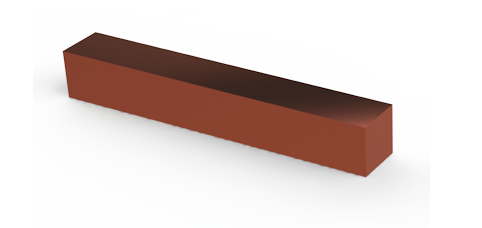
A piece of a copper bar with the Default configuration active.
The following table shows where the Property values are written in the SOLIDWORKS document's Summary Information using the different options for the Property's Initial configuration:
| Resolved Value in SOLIDWORKS File's Custom/Configuration Properties | |||||||
|---|---|---|---|---|---|---|---|
| Property | Initial Configuration | Properties Value | Document Properties | Default | L150 | L200 | L210 |
| Purpose | Document properties and all configurations | Copper Part Sets | Copper Part Sets | Copper Part Sets | Copper Part Sets | Copper Part Sets | Copper Part Sets |
| Additional 1 | Document properties and active configuration | General Usage | General Usage | General Usage | No property/value | No property/value | No property/value |
| Drawing No | Document properties | 000001 | 000001 | No property/value | No property/value | No property/value | No property/value |
| Dimensions | Active configuration | FB-15x100-15 | No property/value | FB-15x100-15 | No property/value | No property/value | No property/value |
Let's say we have an existing SOLIDWORKS part which is a piece of gold as shown in the following pictures. This gold piece has been configured by its features and the length dimension for different purposes.
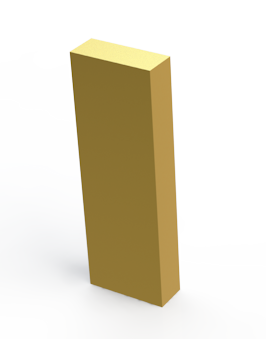
A piece of gold with the Default configuration active.
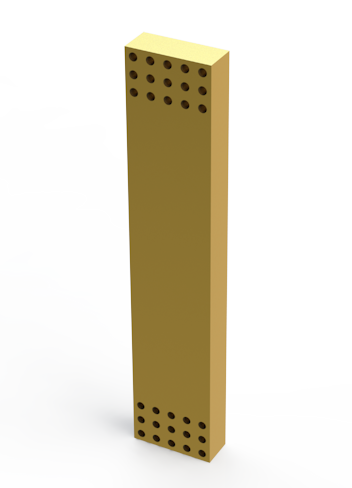
A piece of gold with the H250 configuration active.
The following table shows where the Property values are written in the SOLIDWORKS document's Summary Information using the different options for the Property's Initial configuration:
| Resolved Value in SOLIDWORKS File's Custom/Configuration Properties After Changes (Old value if changed) | ||||||
|---|---|---|---|---|---|---|
| Property | Initial Configuration | Properties Value | Document Properties | Default | H200 | H250 |
| Purpose | Document properties and all configurations | Wall Support | Wall Support | Wall Support | Wall Support | Wall Support |
| Additional 1 | Document properties and active configuration | Extra Long Walls (Corner Piece) | Corner Piece (Corner Piece) | Corner Piece | No property/value | Extra Long Walls (No property/value) |
| Drawing No | Document properties | 000003 | 000003 | No property/value | No property/value | No property/value |
| Dimensions | Active configuration | FB-50x250-20 | No property/value | FB-50x150-20 | No property/value | FB-50x250-20 (No property/value) |
The gold piece was saved for the first time with the Default configuration active. For that reason, the Dimensions property still has its existing value untouched in the Default configuration while the model is being saved for the second time, with the H250 configuration active. This behavior comes from the Dimensions property's initial configuration which is Active configuration, so the new value is always written only to the configuration active at the moment of saving.
A property called Additional 1 has Document properties and active configuration as its initial configuration, so when the model is saved a second time, the new value defined in the Properties pane gets written into the document itself and into the active configuration, which is H250 the second saving time mentioned in this example.
| Part | The Property applies to parts. Not selectable when creating or editing a drawing or Cut-List Item property. |
| Assembly | The Property applies to assemblies. Not selectable when creating or editing a drawing or Cut-List Item property. |
| Model | The Property applies to parts and assemblies. Not selectable when creating or editing a drawing or Cut-List Item property. |
| Drawing | The Property applies to drawings. Selectable only when creating or editing a drawing property. |
| Cut-List Item | The Property applies to cut-list items. Selectable only when creating or editing a Cut-List Item property. |
| Custom | The Property applies to the custom scopes. Selectable only when creating or editing a custom scope property. |
| Hidden |
Select this option to hide the selected property from the Properties pane.
NOTE:
In the Batch Operation dialog box, the Enable changing of value in printing option in
the
Additional Options
page overrides the Hidden option.
NOTE:
The hidden property value cannot be required.
|
| Show only if property | Determines the property whose value is compared to determine visibility of the selected property. Use the Has value box to define the value to look for in order to set the property visible in the Properties pane. |
| Has value | Search string to be looked for from the Property selected in the Show only if property box. |
| Read-only | The property value cannot be edited by the user. |
| Value required if visible | Select this option to make the selected property mandatory if the property is visible in the Properties pane. If the property is not visible, the value is not required. |
| Write value on Cut-List update |
Select this option to update values of the cut-list items on the cut-list update operation.
ATR CustomTools uses the Property Writers to write the cut list scope custom properties on cut list update. You can set up the Property Writers in the Weldment Settings.
NOTE:
The Write value on Cut-List update option is visible only when the Scope is
Cut-List Item.
|
Use the following video links to watch instructive videos about the associated Property options. All videos are located in the ATR CustomTools YouTube channel. Video links open in a new tab.
| Property Type | Select type of the Property to be created. |
| Initial Configuration | Select the initial configuration to write the property value into. |
| Property Scope | Select the document type to apply the Property for. |
| Required Properties | Required properties are properties that the user is required to assign values to. |
| Hidden Properties | Hidden properties are properties to which the values are written based on user-defined rules, but are not visible in the Properties pane. |
The general controls are included in all pages of the Property Wizard.
| Back | Return to the previous page of the Property Wizard. |
| Next | Proceed to the next page of the Property Wizard. |
| Finish | Save the property and close the Property Wizard. |