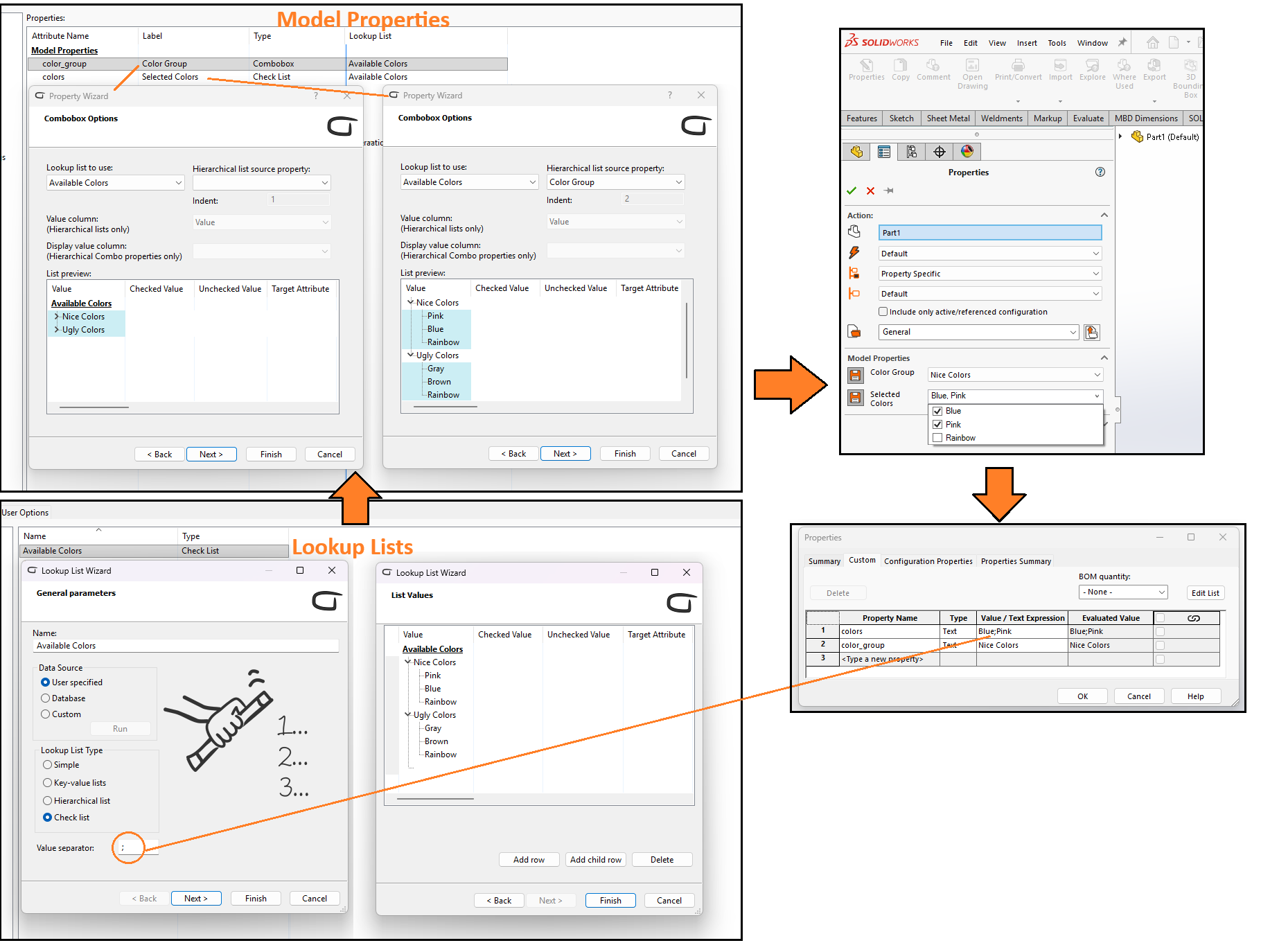
Combobox Options
Lookup list is a list of pre-defined values from which the user can select one as the value of the Property - or multiple values when using Check List type. Lookup lists can be used with Properties of type Combobox, Editable Combobox, Hierarchical Combo, and Check List.
If the Property type is Editable Combobox, the value can be selected or typed manually, whereas Combobox type only allows selecting.
Hierarchical lookup lists (multi-level lists) can be shown entirely with a single
Hierarchical Combo Property, or with Combobox Properties for each level separately using the
Hierarchical list source property option to determine the parent Property of the current selection
level.
When using Hierarchical Combo, the actual value saved is the full path of the selection, concatenated
with the defined List Separator of the hierachical Lookup List.
Check List Properties show a droplist of checkboxes, where each Checkbox has a label defined by the
lookup list Value field. The label is also used as the checked value, unless Checked value is
defined in the list. Similarly, Unchecked value is also applied if non-empty.
Target attribute defines to which Custom Property that checkbox is bound to; when empty, it's the
current property.
Check List Lookup List define List Separator that is used as separator when (un)selections are
concatenated as a property value.
In all above cases, if the Property has a value not present in the current lookup list, that value is kept but it's not added to the Lookup List.
| Lookup list to use | Select the lookup list to be used with the custom property. Hierarchical and Check List lookuplist types have some additional options available. |
| Hierarchical list source property | When using Combobox, Editable Combobox or Check List property with Hierarchical List or Check List lookup list, select the parent Property that drives the content of this Property (starting from the 2nd indent level). |
| Indent | Hierarchical level based on the currently selected Hierarchical list source property. |
| Value column | If the selected lookup list's type is Hierarchical, it is possible to use a key column of the list as stored value instead of the Value column. If a lookup list row has an empty value for key, ATR CustomTools falls back to the Value column for that row. Uniqueness of stored values is expected but not validated. |
| Display value column |
If the selected lookup list's type is Hierarchical and the Property type is
Hierarchical Combo, this option can be used to display values from the selected column while
still writing the corresponding Value column as the actual Property value.
Display value column is only respected at Properties. For example, Search and Search Group Search ignore this option because the result set is given in the real value. Example: You could have another system that expects CustomProperty value of a Unit property to be 1, 2, 3, or 4, but you'd like to choose from corresponding friendly values 'KG', 'KM', 'PCS', and 'HOURS' when filling Properties with ATR CustomTools. To achieve that, create a hierarchical single-level lookup list with rows (value, key1) [1, 'KG'], [2, 'KM'], [3, 'PCS'], and [4, 'HOURS'], then set Property Type to Hierarchical Combo, select the list, choose Value as Value column and key1 as Display value column. |
The List preview shows a preview of the selected lookup list. If the selected lookup list type is Hierarchical, items written into the combobox property (i.e. Value column) are highlighted in the List preview with light blue background color. If Display value column is used, values that appear as selectables for users are shown as dark blue text, if different from Value column.
The general controls are included in all pages of the Property Wizard.
| Back | Return to the previous page of the Property Wizard. |
| Next | Proceed to the next page of the Property Wizard. |
| Finish | Save the property and close the Property Wizard. |