Install ATR CustomTools Using Windows Command Prompt
ATR CustomTools installation can also be performed using the Windows Command Prompt. In the Command Prompt, installation options are set up in a non-graphical way.
The following two ATR CustomTools command line installation examples install the ATR CustomTools SOLIDWORKS Add-in with English and French languages to default destination path in your 64 bit workstation. From below, you can find the examples for using either the floating network licensing or, using the workstation specific standalone licensing.
SQL Server authentication mode is set as SQL Server authentication (IS_SQLSERVER_AUTHENTICATION=1) so SQL Server username (IS_SQLSERVER_USERNAME=ct_admin) and password (IS_SQLSERVER_PASSWORD=ct_admin) are provided in the installation command.
Default destination path of the ATR CustomTools 2022 installation is:
| Reduced User Interface |
Using the reduced user interface you see only a dialog box that you can use to track the installation process. Use the following command to run ATR CustomTools installation from the command line with the reduced user interface:
ATRCustomTools.202x.SPx.64bit.exe /i /s /v"/qr ADDLOCAL=CommonFiles,English,French,CTSWAddin64
IS_SQLSERVER_AUTHENTICATION=1 IS_SQLSERVER_USERNAME=ct_admin IS_SQLSERVER_PASSWORD=ct_admin
IS_SQLSERVER_SERVER=10.5.3.117\CUSTOMTOOLS ISX_SERIALNUM=\"1023 4567 8901\"
LICENSE_MANAGER_MACHINE=10.5.3.117"
|
| Silent Installation |
The silent installation does not show any user interface at any point of the installation process. The following command runs ATR CustomTools installation from the command line in silent mode:
ATRCustomTools.202x.SPx.64bit.exe /i /s /v"/qn ADDLOCAL=CommonFiles,English,French,CTSWAddin64
IS_SQLSERVER_AUTHENTICATION=1 IS_SQLSERVER_USERNAME=ct_admin IS_SQLSERVER_PASSWORD=ct_admin
IS_SQLSERVER_SERVER=10.5.3.117\CUSTOMTOOLS ISX_SERIALNUM=\"1023 4567 8901\"
LICENSE_MANAGER_MACHINE=10.5.3.117"
|
The following two examples installs 64-bit editions of the ATR CustomTools Add-In for SOLIDWORKS and, the ATR CustomTools Administration by using a standalone licensing model.
| Reduced User Interface |
Using the reduced user interface you see only a dialog box that you can use to track the installation process. Use the following command to run ATR CustomTools installation from the command line with the reduced user interface:
ATRCustomTools.202x.SPx.64bit.exe /i /s /v "/qr
ADDLOCAL=CommonFiles,English,French,CTSWAddin64,CTAdm64 IS_SQLSERVER_AUTHENTICATION=1
IS_SQLSERVER_USERNAME=ct_admin IS_SQLSERVER_PASSWORD=ct_admin
IS_SQLSERVER_SERVER=10.5.3.117\CUSTOMTOOLS ISX_SERIALNUM=\"0123 4567 8901\""
|
| Silent Installation |
The silent installation does not show any user interface at any point of the installation process. The following command runs ATR CustomTools installation from the command line in silent mode:
ATRCustomTools.202x.SPx.64bit.exe /i /s /v "/qn
ADDLOCAL=CommonFiles,English,French,CTSWAddin64,CTAdm64 IS_SQLSERVER_AUTHENTICATION=1
IS_SQLSERVER_USERNAME=ct_admin IS_SQLSERVER_PASSWORD=ct_admin
IS_SQLSERVER_SERVER=10.5.3.117\CUSTOMTOOLS ISX_SERIALNUM=\"0123 4567 8901\""
|
The ATRCustomTools.202x.SPx.64bit.exe referenced in the examples above, means the ATR CustomTools installer name. Replace that part by the ATR CustomTools installer file name you have downloaded. For example, if you have downloaded the ATR CustomTools 2022 SP0, the installer's file name is ATRCustomTools.2022.SP0.64bit.exe.
The ADDLOCAL parameter in the examples above, is used to determine the ATR CustomTools components to be installed. Required components needed always on ATR CustomTools command line installation are English and CommonFiles.
Use the component identifiers listed below to determine which ATR CustomTools components to install via command line.
| Client Components |
|
|||||||||||||||
| Tools |
|
|||||||||||||||
| Server Components |
|
The following languages are available for command-line installation. Use the language identifiers below to select desired languages:
| Language | Identifier | Notes |
|---|---|---|
| English (United States) | English | Required |
| Simplified Chinese | Chinese | Optional |
| Traditional Chinese | ChineseTraditional | Optional |
| Czech | Czech | Optional |
| French (France) | French | Optional |
| Hungarian (Hungary) | Hungarian | Optional |
| German (Germany) | German | Optional |
| Parameter | Description |
|---|---|
| ISX_SERIALNUM | Your ATR CustomTools serial number. The serial number is required in order to activate and then use the ATR CustomTools products installed in a workstation. |
| IS_SQLSERVER_SERVER |
This parameter is used to determine the SQL Server instance where the ATR CustomTools Database is or should be located in your ATR CustomTools environment. The SQL Server instance must be entered using the format shown below: IS_SQLSERVER_SERVER=SERVER\CUSTOMTOOLS
The HOSTNAME can also be a local IP address of the server computer where the SQL Server instance is running. If you installed SQL Server using the installer package from the Microsoft download page and used the default instance name (MSSQLSERVER), you can type the SQL Server name in the installation command without an instance name (ATR CustomTools in the example above), so the SQL Server can be defined as: IS_SQLSERVER_SERVER=SERVER
|
| LICENSE_MANAGER_MACHINE |
A parameter used to determine the license server machine. Use the license server's host name or a local IP address to specify the license manager machine in the command line installation. The license manager machine is determined by an IP address in the following example: LICENSE_MANAGER_MACHINE=10.5.3.117
NOTE:
The LICENSE_MANAGER_MACHINE parameter is required only when your ATR CustomTools environment
uses floating network licenses. Do not add the LICENSE_MANAGER_MACHINE parameter to the
installation command if you use a workstation-specific licensing model.
|
| Parameter | Description | ||||||
|---|---|---|---|---|---|---|---|
| IS_SQLSERVER_AUTHENTICATION |
Determines whether to use Windows or SQL Server authentication to log in to SQL Server.
|
||||||
| IS_SQLSERVER_USERNAME | SQL Server username for authentication mode 1. | ||||||
| IS_SQLSERVER_PASSWORD | SQL Server user's password for authentication mode 1. | ||||||
| INSTALLDIR |
Custom installation path for ATR CustomTools products. Example:
ATRCustomTools.2022.SP0.64bit.exe /i /s /v"/qr INSTALLDIR=\"C:\Program Files\CT 2022\"
ADDLOCAL=CommonFiles,English,French,CTSWAddin64 IS_SQLSERVER_AUTHENTICATION=1
IS_SQLSERVER_USERNAME=ct_admin IS_SQLSERVER_PASSWORD=ct_admin
IS_SQLSERVER_SERVER=10.5.3.117\CUSTOMTOOLS ISX_SERIALNUM=\"1023 4567 8901\"
LICENSE_MANAGER_MACHINE=10.5.3.117"
This installs ATR CustomTools products to a custom path. In this example the custom path is: C:\Program Files\CT 2022\ 2022\ |
Please note that the following instructions work when you have already located your ATR CustomTools installation media in the Windows Command Prompt.
The ATR CustomTools installer is located in the root folder of the installation media.
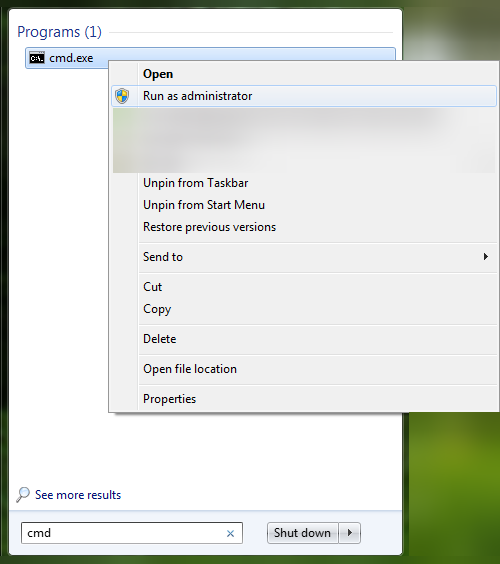
Open the Start menu and type cmd into the Search programs and files box. Right-click cmd.exe and select Run as Administrator as shown below: