ATR CustomTools Uninstallation Using the Command Line
You can uninstall ATR CustomTools products using the Windows command line by typing the following command when you are already in the folder where your ATR CustomTools installation packages are located:
64-bit: ATRCustomTools.201x.SPx.64bit.exe /x
The uninstallation command mentioned above launches the Windows Installer in uninstall mode. The uninstaller removes all ATR CustomTools product installations once the user has confirmed the uninstallation.
EXAMPLE: To uninstall the 64-bit edition of ATR CustomTools 2019 SP0 using the command line, with a reduced user interface of the Windows Installer, add /s at the end of the command. For example: ATRCustomTools.2019.SP0.64bit.exe /x /s.
Please note that the following instructions work when you have already located your ATR CustomTools installation media in the Windows Command Prompt.
An executable file of the ATR CustomTools setup is located in the root folder of the installation media.
To Open the Command Prompt
- Open the Start menu.
- In the Search programs and files box, type CMD. The cmd.exe appears in the list.
- Right-click cmd.exe and select Run as Administrator as shown in the following screenshot.
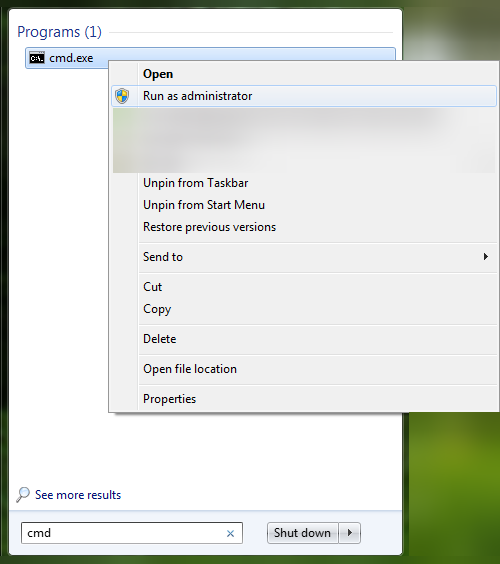
Running Command Prompt as Administrator from the Start menu.