ATR CustomTools Administrative Installation
You can install ATR CustomTools as an administrative image, pre-installed to a desired location on the local network so client workstations can easily install ATR CustomTools in environments with multiple workstations.
The administrative installation works by deploying the administrative image to a network location accessible to the necessary client workstations. Client workstations can then run the ATR CustomTools installation from the network location where the administrative image was deployed by the environment administrator.
The administrative image for ATR CustomTools installation can be created on a server or any client workstation in the environment. Ensure you create the administrative image in a network location accessible to all necessary client workstations.
The administrative image can be created through the Windows command prompt. Navigate to the folder where your ATR CustomTools installer is located, then type the following command for your operating system to launch the administrative installation wizard:
| 64-bit | ATRCustomTools.202x.SPx.64bit.exe /a |
This launches an installer to set up the following for ATR CustomTools client installations:
| User information | Windows user information used to register ATR CustomTools in the local workstation. |
| Serial number | Your ATR CustomTools serial number. |
| Database server | Server machine and SQL Server instance name where the ATR CustomTools database is located. |
| Database server login information | Login information used to log in to the SQL Server where the ATR CustomTools database is located. |
| Destination path | Destination path for the administrative image. Ensure the network location is accessible to all necessary client workstations. |
These instructions assume you have already located your ATR CustomTools installation media in the Windows Command Prompt.
The ATR CustomTools installer is located in the root folder of the installation media.
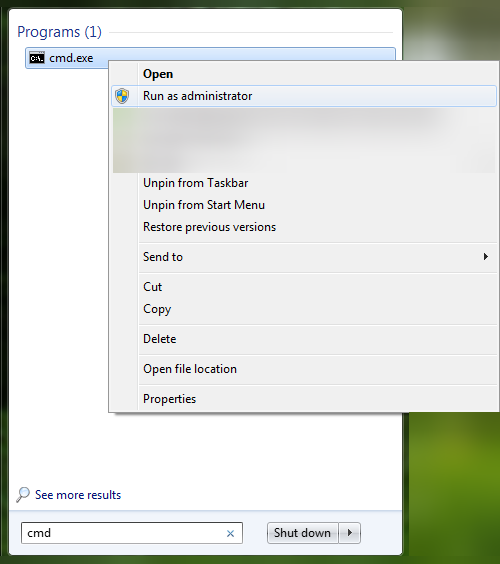
Open the Start menu and type cmd into the Search programs and files box. The cmd.exe appears in the list. Right-click cmd.exe and select Run as Administrator as shown below: