User Defined Values
The values of the lookup list can also be defined by the user. User defined values are not received from any external source.
When the lookup list type is Key-Value Pairs, the shown values in the combobox of custom property are retrieved from the Value column.
Watch an instructive video about the associated Lookup list options from our Youtube channel. Video opens in a new tab, or if you are opening it from the ATR CustomTools offline helps, the link opens in your default browser.
| Value table |
Shows the values which are currently included in the lookup list. Value table is also used to specify the user defined list values. The user defined values can be freely defined:
|
||||||
The following commands are available in the lookup list editor when the lookup list values are user specified:
Command buttons:
| Delete | Removes the selected values from the lookup list. |
Right-click menu:
| Cut | Removes the selected value from the list and copies it into the Windows clipboard so you can paste the value into another place. |
| Copy | Copies the selected value into the Windows clipboard so you can paste it to another place. |
| Paste | Pastes the value from the Windows clipboard into the lookup list. |
| Clear | Clears the selected row in the lookup list. |
| Delete | Deletes the selected row from the lookup list. |
| Add row | Adds a new row into the lookup list. In the hierarchical lookup list, this command adds a new parent row into the list. |
In the editor of the hierarchical lookup lists, you have a few extra commands to use. The following list describes the command buttons that are available only in hierarchical lookup list editor:
| Add row | Adds a parent row into the lookup list. |
| Add child row | Adds a child row under the selected node into the lookup list. |
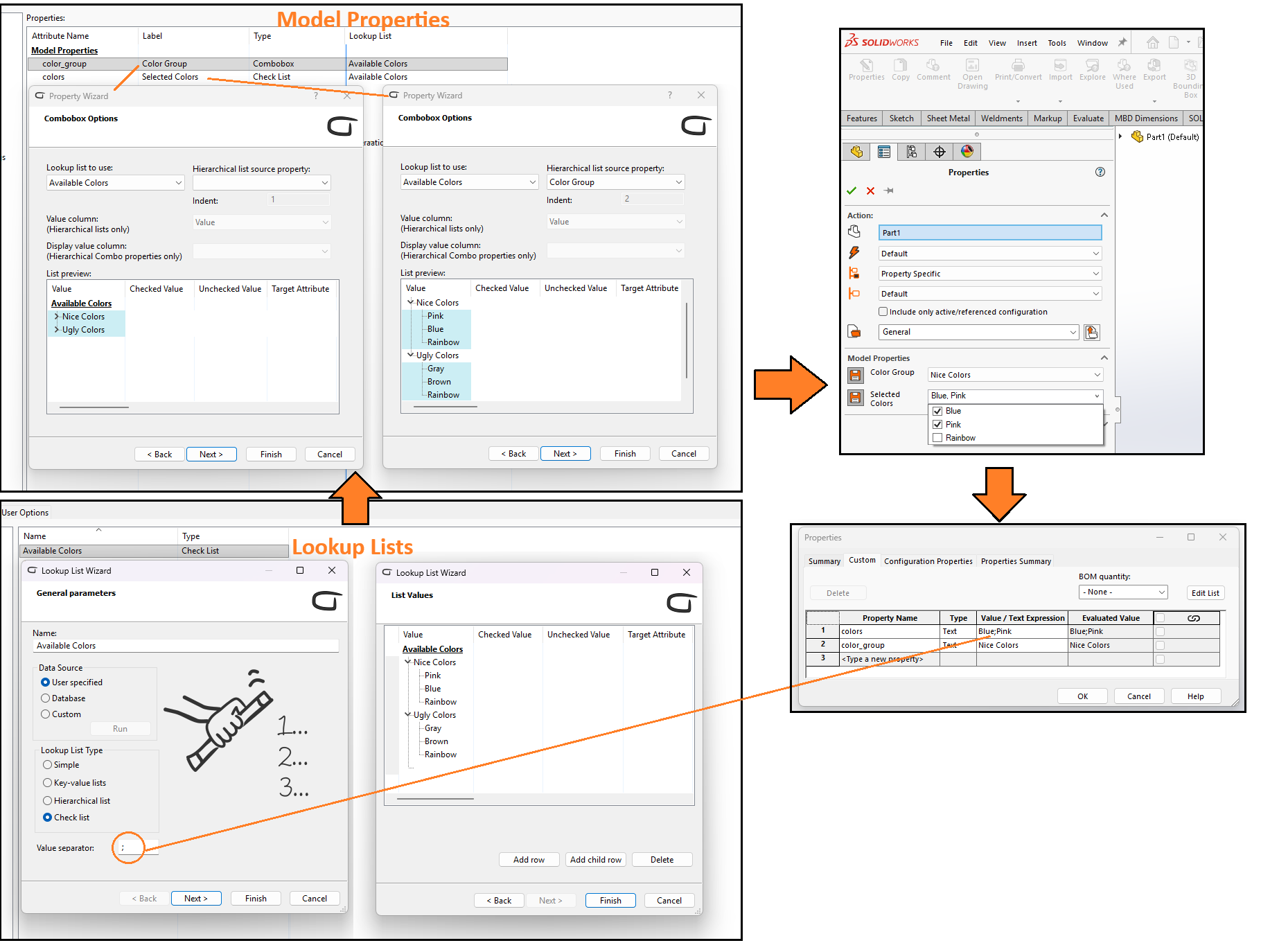
Checks Lists have a special meaning for the value and the first three keys, but columns keys can be
retrieved with
GetLookupListColumn -Data function; but NOT from Check List Property.
| Value | This is the display value i.e. what designers see next to the checkbox. |
| Checked Value |
Optional. This is the actual value of the checkbox when it's checked, and thus the value that
gets saved to the property.
Defaults to Value if left empty. |
| Unchecked Value | Optional. This is the actual value of the checkbox when it's unchecked, and thus the value that gets saved to the property. |
| Target Attribute |
Optional. CheckList Properties also support targeting "foreign" attributes. If left empty, the
property's own attribute is the target.
TIP:
Targeting foreign attributes does not require defining a CustomTools Property for them, so this is a
good way to reduce amount of checkbox controls in your profile. This works also with legacy models
and e.g. PDM FileCards.
NOTE:
Check Values and Uncheck Values MUST be unique for the same
Target Attribute.
|